
Game Booster: GFX & Lag Fix
Asumatec System LTDLibraries & Demo
4.313.00 Reviews
- Version
- 1.5
- Installs
- 100.00K
- Age Rating
- Everyone
Screenshots
Our Review of Game Booster: GFX & Lag Fix
 Analysis by Appyee
I approached Game Booster: GFX & Lag Fix as a practical tool rather than a magic solution. Its purpose is straightforward: help Android players prepare their device for gaming, reduce the feeling of lag where possible, improve ping handling, and expose graphics controls that may otherwise be difficult to reach. After spending time with it, I think it is most useful for people who want a simple place to adjust their gaming setup instead of changing several phone settings by hand.
The app comes from Asumatec System LTD and sits in the Libraries & Demo section, although its real audience is clearly mobile gamers. It is free to use, rated for Everyone, and supports devices running Android 7.0 or later. The current version is 1.5, and its presence on more than 100 thousand devices suggests that it has found a reasonable audience among players looking for a lightweight gaming utility.
My first impression was that the app is aimed at beginners as much as experienced users. You do not need to understand every graphics term before opening it. At the same time, the available GFX controls mean that careless changes can make a game look worse or behave unpredictably. I would therefore treat it as a tuning tool: useful when approached one setting at a time, less useful when every option is changed at once.
What to expect before changing anything
The name makes a broad promise, but it is important to set realistic expectations. A booster cannot create hardware power that a phone does not have, and it cannot repair a weak Wi-Fi signal or a distant game server. What it can do is give you a more convenient way to prepare a game session and experiment with graphics settings that may affect smoothness.
That distinction matters. When a game stutters because the phone is overheating, the connection is unstable, or the device is already struggling with background activity, a single tap will not necessarily solve the problem. I found the app more convincing as a controlled starting point than as an automatic cure. It helps you identify what to adjust, then lets you judge whether the change actually improved your session.
The appeal is especially clear on older or modest Android phones. On such devices, lowering visual demands can sometimes be a better trade than insisting on the sharpest image. A steadier game often feels better than a beautiful one that pauses during a match. Players with newer flagship hardware may still appreciate the convenience, but they are less likely to see a dramatic difference from basic optimization.
The store rating is a 4.3 average from around 4.7 thousand ratings, which gives the app a positive overall reception without making it automatically right for everyone. I would read that as encouragement to try it, not as proof that every device will respond identically. Android phones differ widely in chipsets, displays, cooling, manufacturer software, and game behavior.
How I would approach the first launch
My advice is to open the app when you are not already in the middle of a competitive game. Give yourself a few minutes to understand the screen and note how your chosen game currently performs. Pay attention to the things you actually want to improve: delayed controls, frame drops, long loading moments, unstable online play, or excessive heat.
This baseline is more useful than relying on memory. Play the same short section or match before and after making a change. If you alter several options together, you will not know which adjustment helped or caused trouble. A simple notebook entry or mental note about smoothness, image quality, and connection behavior can prevent a lot of random tweaking.
I also recommend beginning with conservative graphics choices. The most aggressive-looking setting is not automatically the best one. If the image becomes too soft, text is harder to read, or important details disappear, the gain in smoothness may not be worth it. The right balance depends on the game and on what you value while playing.
Because the app is free, it is easy to test without making a purchase decision first. That does not mean every option should be enabled immediately. Free utilities still deserve careful handling, particularly when they change how another game starts or how its graphics are configured. A slow, reversible workflow is safer and usually produces a clearer result.
Finding the first meaningful success
For a first useful test, I would choose one game that regularly feels heavy on the phone. Start the booster, select that game if the interface asks you to work with a particular title, and apply only a modest graphics adjustment. Then launch the game and play a repeatable section rather than judging the result from the loading screen alone.
The first success should be something you can feel, not a claim on a menu. Maybe the camera movement is less jerky, aiming feels more consistent, or a crowded scene no longer causes such an obvious slowdown. If the picture becomes noticeably poorer while the controls feel unchanged, undo that choice and try a milder configuration. The app is most valuable when it helps you make this comparison quickly.
One practical workflow is to prioritize stable play over maximum detail. In a fast multiplayer game, reduced graphical complexity may help responsiveness more than a sharper texture. In a slower single-player title, you may prefer to preserve visual quality and tolerate occasional dips. The same phone can need different treatment for different games, so I would avoid treating one profile as a universal answer.
Ping deserves the same careful interpretation. A booster may help you prepare the device and connection environment, but it cannot control every part of online latency. If the real problem is a busy network, poor router placement, mobile signal variation, or server distance, changing graphics settings will not remove the delay. Test online play at the same location and under similar network conditions before deciding whether the app made a difference.
I found that this mindset makes the app less frustrating. Instead of asking whether it “fixed lag” in an absolute sense, ask which kind of lag you are experiencing. Visual stutter and delayed network responses can feel similar during a match, but they have different causes. The app is better suited to the device and graphics side of that problem than to circumstances outside the phone.
Confusing options and mistakes worth avoiding
The biggest source of confusion for a new user is the word “optimization.” It sounds like there is one ideal setting hidden somewhere, but optimization is really a compromise. More detail can demand more processing, while lower detail can make a game look less attractive. A setting that helps one title may be unnecessary or unpleasant in another.
Another common mistake is judging success by a single dramatic session. Phones behave differently when they are cool, warm, nearly full, or busy with other tasks. Network conditions also change. If the result matters, repeat the test more than once and compare the same type of gameplay. I would trust a consistent improvement more than one unusually smooth match.
Do not confuse a smoother frame rate with a better internet connection. If opponents appear to jump, actions arrive late, or the game reports network instability, investigate the connection separately. The booster may still be worthwhile for graphics tuning, but expecting it to overcome every online problem leads to disappointment.
I would also avoid chasing the highest possible frame setting simply because it is available. A phone that briefly reaches a higher rate but then heats up and throttles can feel worse over a longer session. Consistency is often the more useful target. If a moderate configuration remains comfortable after extended play, I would choose it over a demanding setting that looks impressive for a few minutes.
There is also a human factor: if you change settings immediately before an important match, you may blame the app for unfamiliar controls or visual differences. Test before a serious session, keep track of your preferred arrangement, and return to the previous setup if the game feels wrong. This is particularly important for players who rely on visual cues or precise timing.
The app should not replace ordinary device care. Closing unnecessary activities, keeping enough storage available, avoiding direct heat, and using a reliable network can matter just as much as a graphics adjustment. I see the booster as one part of a routine, not as permission to ignore the conditions that create performance problems in the first place.
Where it fits beside ordinary alternatives
Android already includes built-in gaming tools on some phones, and those may be a better choice when they offer device-specific controls. Manufacturer utilities can sometimes understand the phone’s thermal behavior or provide game notifications and performance modes that a general app cannot match. If your phone already has a stable gaming panel, compare the two instead of assuming you need both.
The advantage of this app is accessibility. A separate game booster can be easier to find than a hidden manufacturer menu, especially for someone using a phone with fewer gaming features. Its focus on GFX controls also makes it appealing to users who want to experiment with image quality rather than only toggle a general performance mode.
Manual settings inside a game remain the most transparent alternative. They show exactly what the developer allows you to change and usually avoid adding another layer between the game and the player. If a title already has clear resolution, frame-rate, and quality controls, I would first learn those options. The booster becomes more interesting when you want a more centralized workflow or when the game’s own controls feel limited.
Dedicated network troubleshooting is a better alternative for connection problems. A router check, a different network, or testing at another time can reveal more than a graphics utility. Likewise, a phone upgrade is the honest answer when several demanding games remain uncomfortable despite sensible settings. No software layer can fully substitute for stronger hardware.
That comparison helped me define the app’s proper role. It is not a replacement for built-in tools in every phone, not a specialist network diagnostic, and not a guarantee of higher performance. It is a convenient middle option for Android players who want guided access to game-focused adjustments without manually searching through the phone each time.
Who will benefit and who should skip it
I would recommend trying it if you play demanding games on an older Android device, frequently move between games with different graphics needs, or dislike repeating the same preparation steps before a session. It is also a sensible experiment for a first-time user who wants to understand whether lower visual demands improve play before considering a more expensive hardware change.
A realistic example would be someone playing after work on a mid-range phone. Their game runs acceptably in quiet areas but becomes uneven during crowded fights. I would have them use the app to make a restrained graphics change, replay a similar encounter, and keep the setting only if the controls feel more stable without making the display unreadable. That is a practical success, even if the phone does not suddenly perform like a premium model.
I would skip it if your only problem is unreliable internet, if your phone already handles every game comfortably, or if you are unwilling to compare settings patiently. Players who want a fully automatic, invisible fix may find the experience less satisfying because meaningful tuning requires judgment. Competitive users should also be cautious about changing a familiar visual setup shortly before an important event.
Parents may appreciate the Everyone rating, but the age label should not be mistaken for a guarantee about the games launched through it. The app itself is categorized for all ages, while the content of a selected game is a separate matter. I would still manage installed games according to the player’s age and the family’s own rules.
My next-step routine after the first test
Once you find a setting that feels better, keep the routine simple. Use the same configuration for several sessions, then check whether the improvement remains when the phone is warmer or the network is busier. If performance fades, reduce the demand slightly rather than immediately searching for a more extreme option.
It is worth keeping a preferred setup for each type of game, even if the app does not present your ideal arrangement automatically. A visually rich adventure game may deserve different treatment from a competitive shooter or a casual title. Thinking in profiles helps you avoid applying a heavy-handed change everywhere.
When an update changes the app or a game, retest instead of assuming the old result still applies. The current release is version 1.5, and software behavior can evolve on both sides of the setup. I would treat any update as a reason to verify your configuration, not as a reason to reset everything without checking.
My final view is positive but measured. Game Booster: GFX & Lag Fix is a useful free companion for Android players who want a clearer path from “this game feels rough” to “this setting works better for me.” Its strongest quality is the practical control it puts in one place; its main limitation is that it cannot solve heat, weak hardware, or network conditions by itself.
If you approach it with a baseline, make one change at a time, and judge the result during real gameplay, it can earn a regular place in your gaming routine. The best result is not the most aggressive configuration, but the one that keeps your game comfortable, readable, and consistent. For that reason, I would recommend giving it a careful trial, while keeping the built-in game settings and ordinary connection checks in your toolkit as well.
Verdict
Strengths of Game Booster: GFX & Lag Fix
- Simple interface makes performance tweaks easy to access.
- Can help reduce stuttering in some graphics-intensive games.
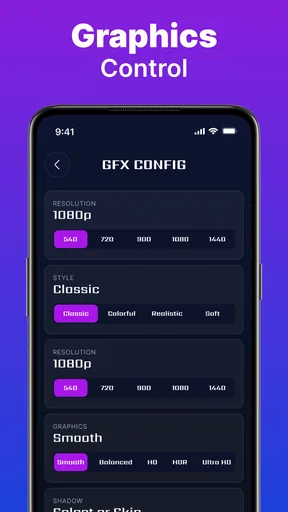
- Offers resolution and frame-rate adjustment options.
- Useful for testing different graphics profiles without changing game files.
- May improve playability on older or budget Android devices.
Limitations of Game Booster: GFX & Lag Fix
- Results vary significantly depending on the device and game.
- Some settings may increase battery drain and device temperature.
- Aggressive tweaks can cause visual glitches or app crashes.
- Requires extra permissions that privacy-conscious users may dislike.
- Not all features work reliably with every Android version or game.
Similar Picks in This Category
View All
PGT: GFX, Launcher & Optimizer
Trilokia Inc.4.5

AusweisApp Bund
Governikus Service GmbH3.7

Cardboard
Google LLC3.2

Gamers GLTool with Game Tuner
Trilokia Inc.4.5

Multi Web Chat - Read Secretly
World Scan & Cleaner3.8

App Cloner Premium & Add-ons
App Listo1.9
Frequently Asked Questions
What is Game Booster: GFX & Lag Fix, and what does it do?
Game Booster: GFX & Lag Fix is designed to help optimize Android gaming performance by adjusting selected graphics and system settings. Depending on your device and the game, it may help reduce stuttering, improve frame-rate stability, and make controls feel more responsive. It is not a magic performance upgrade, however, and results depend on your phone’s hardware, available storage, background apps, and the game being optimized.
Can Game Booster: GFX & Lag Fix work with every Android game?
The app may support many popular games, but compatibility is not guaranteed for every title. Its available options can vary according to the game, Android version, device manufacturer, and the permissions granted. Some games may ignore external graphics settings or restore their own defaults after an update. Before downloading, users should check the app’s supported-game information and avoid changing settings aggressively if a particular title is not officially supported.
Will Game Booster: GFX & Lag Fix really increase FPS and remove lag?
It can improve performance in some situations, especially when lag is caused by unsuitable graphics settings, excessive background activity, or an unstable frame-rate configuration. Nevertheless, it cannot overcome the limitations of an older processor, weak GPU, poor internet connection, overheating, or server problems. Lowering resolution and visual quality may produce smoother gameplay, but the improvement can come with reduced image quality and fewer graphical details.
Is Game Booster: GFX & Lag Fix safe to use on my phone and gaming accounts?
The app should be downloaded from a reputable source and reviewed carefully before installation. Performance tools commonly request permissions or use system features to launch games and manage settings, so users should understand what access is being requested. Avoid options that claim to provide unfair advantages, modify game files, or bypass security systems, since these actions may violate a game’s rules and could potentially put an account at risk.
Does Game Booster: GFX & Lag Fix require root access or special permissions?
Many basic optimization features can work without root access, although the exact requirements depend on the Android version, device, and tools included in the installed release. Certain advanced adjustments may require additional permissions, accessibility access, or other system privileges. Users should grant only permissions that are clearly explained, keep a record of their original game settings, and restart the game or phone if changes cause crashes, overheating, or unusual battery drain.
